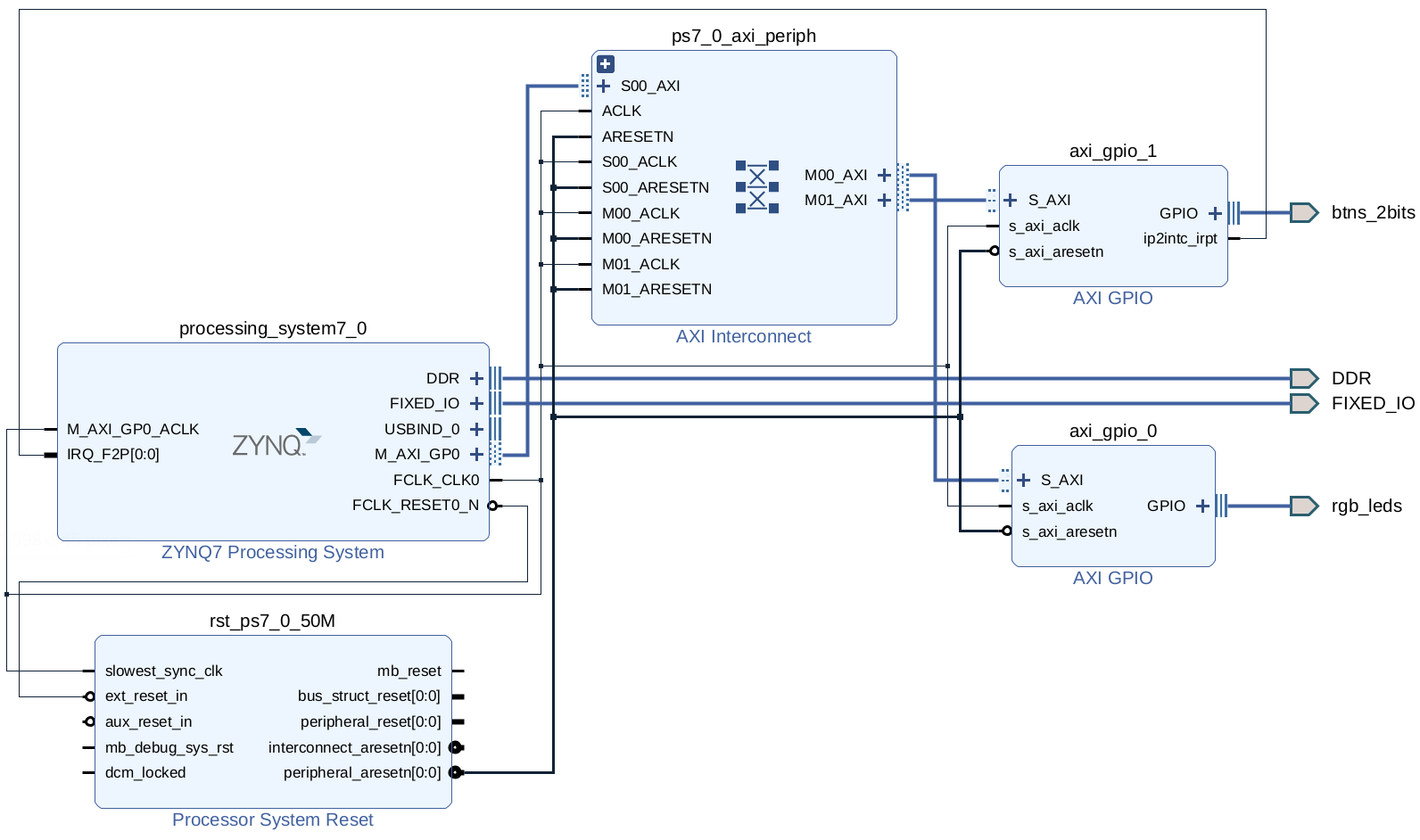
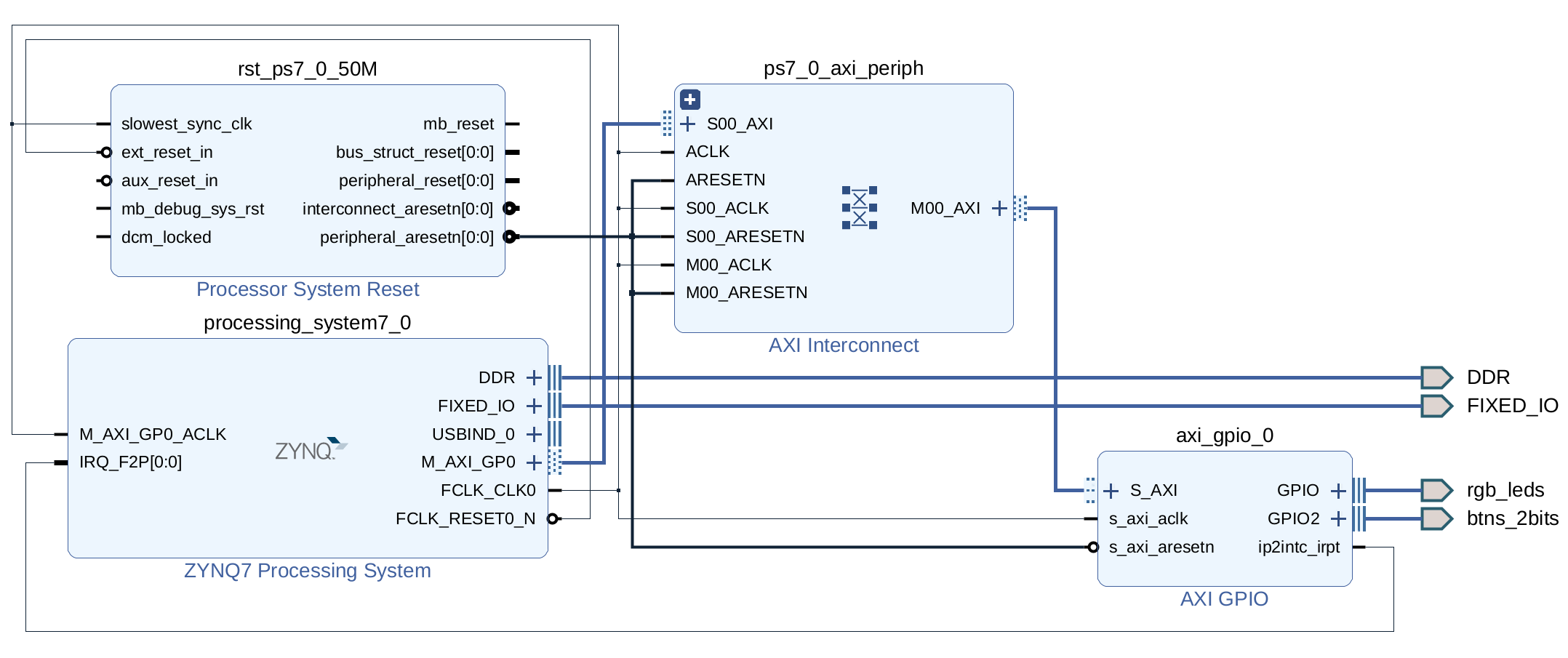
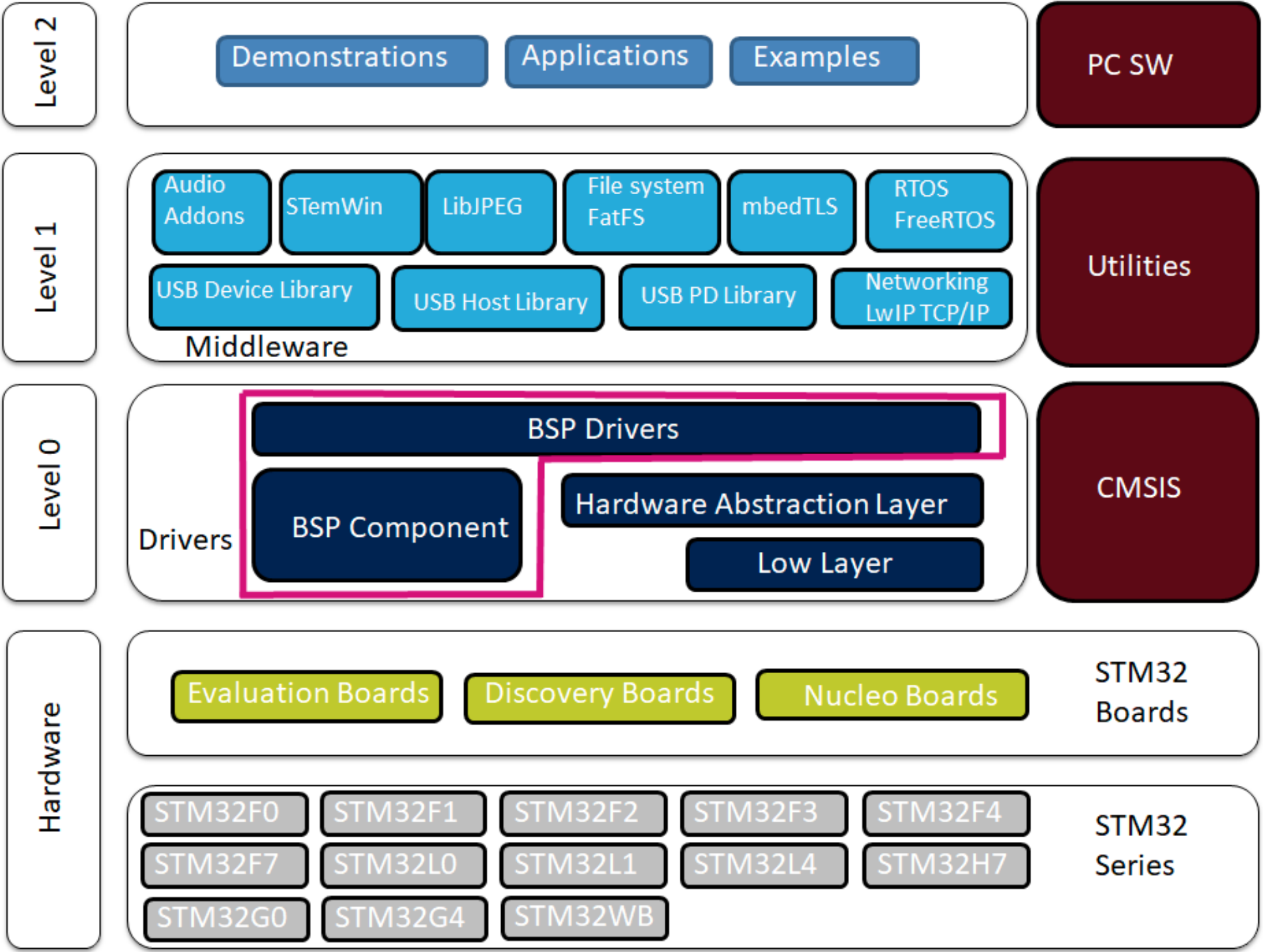
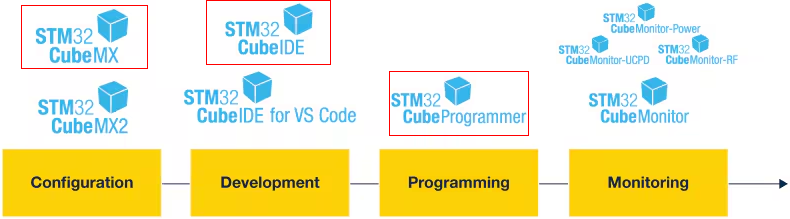
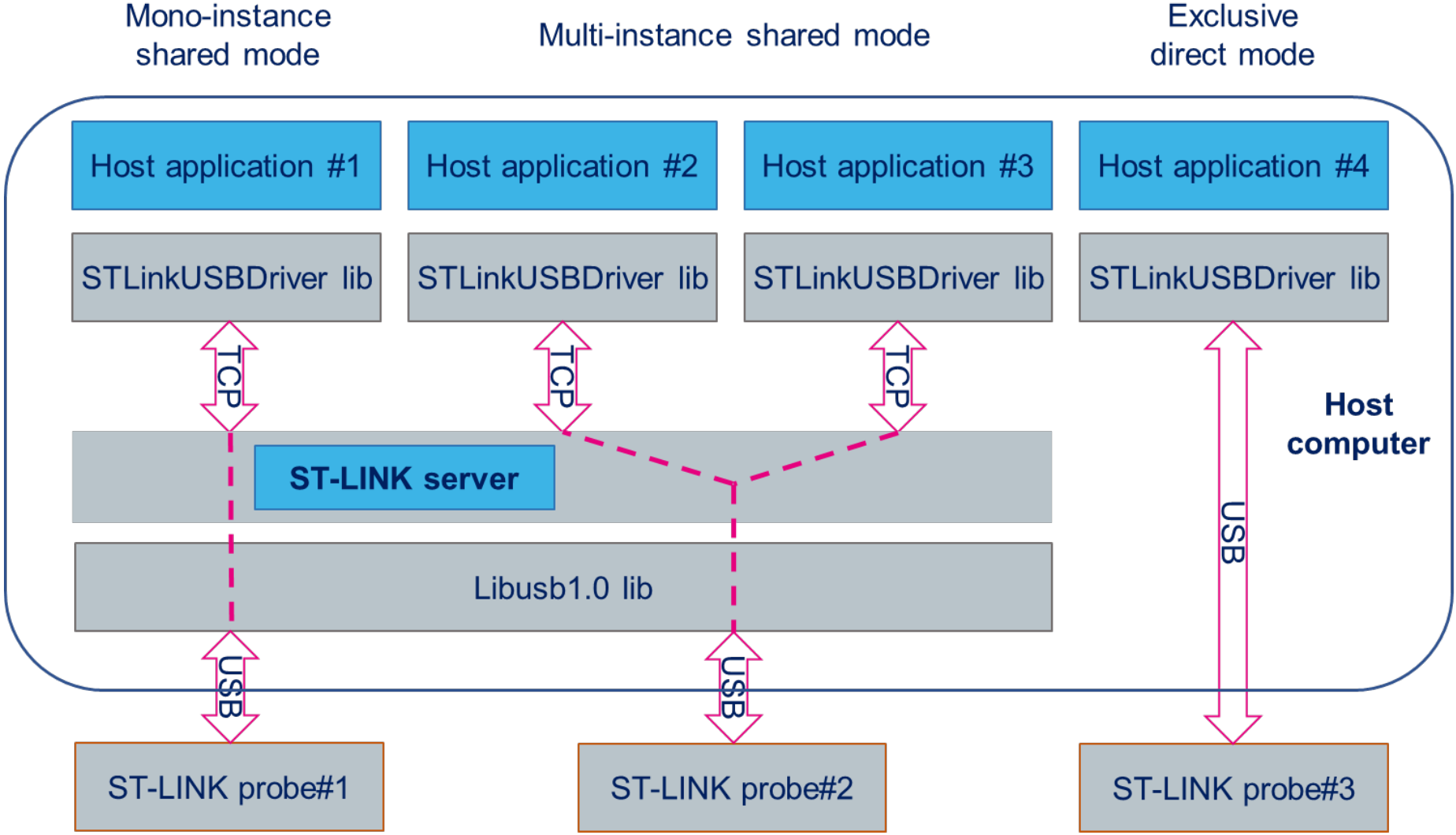
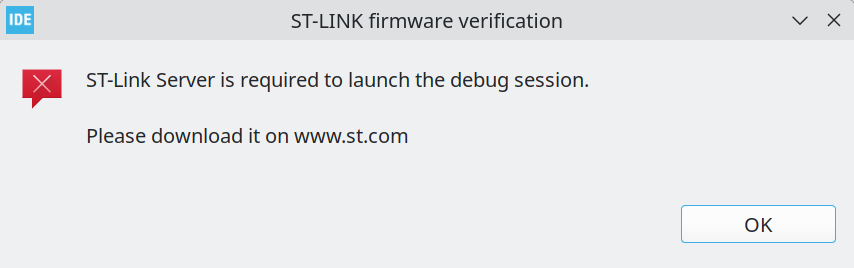
<?xml version="1.0" encoding="utf-8"?><feed xmlns="http://www.w3.org/2005/Atom" xml:lang="en"><generator uri="https://jekyllrb.com/" version="4.4.1">Jekyll</generator><link href="https://fperona.gitlab.io/feed.xml" rel="self" type="application/atom+xml"/><link href="https://fperona.gitlab.io/" rel="alternate" type="text/html" hreflang="en"/><updated>2026-05-02T23:04:56+00:00</updated><id>https://fperona.gitlab.io/feed.xml</id><title type="html">homepage</title><subtitle>This is my headquarters, where I organize my mind. </subtitle><entry><title type="html">Basic concepts in STM32</title><link href="https://fperona.gitlab.io/blog/2026/Basic_concepts_STM32/" rel="alternate" type="text/html" title="Basic concepts in STM32"/><published>2026-05-02T21:39:58+00:00</published><updated>2026-05-02T21:39:58+00:00</updated><id>https://fperona.gitlab.io/blog/2026/Basic_concepts_STM32</id><content type="html" xml:base="https://fperona.gitlab.io/blog/2026/Basic_concepts_STM32/"><![CDATA[<p>There are a couple of new terms and concepts I’m learning while working with STM32. I will add more as they appear.</p> <h3 id="hardware-abstraction-layer-hal">Hardware Abstraction Layer (HAL)</h3> <p>Not really new, but STM32 makes it explicit. On other platforms, the abstraction is provided by the libraries for a specific chip we import into the code. In STM32, the functions and parameters are masked with generic names, are organized in a HAL library, and their names start with <em>HAL_</em>. HAL provides the highest level of abstraction and is uniform across STM32 MCUs, enabling portability and simplifying peripheral configuration and access. In addition, the HAL library is available for all peripherals.</p> <p>The downside is increased memory usage and overhead. That can be a problem when you need precise runtime control or efficient memory use.</p> <p>The document <a href="https://www.st.com/content/ccc/resource/technical/document/user_manual/56/32/53/cb/69/86/49/0e/DM00223149.pdf/files/DM00223149.pdf/jcr:content/translations/en.DM00223149.pdf" title="Description of STM32F2 HAL and low-layer drivers">Description of STM32F2 HAL and low-layer drivers (UM1940)</a> gives a complete description of the library.</p> <h3 id="low-layer-ll-apis">Low-Layer (LL) APIs</h3> <p>LL offers functions that are one step closer to the hardware than HAL. It masks the hardware, but allows access to registers and detailed peripheral configuration. This level of control allows better optimization but requires deeper technical knowledge of the MCU and compromises portability. Moreover, ST provides LL APIs for only a restricted number of peripherals.</p> <p>The specification of the LL APIs is in the same <a href="https://www.st.com/content/ccc/resource/technical/document/user_manual/56/32/53/cb/69/86/49/0e/DM00223149.pdf/files/DM00223149.pdf/jcr:content/translations/en.DM00223149.pdf" title="Description of STM32F2 HAL and low-layer drivers">document</a> that describes HAL.</p> <h3 id="board-support-packages-bsp">Board Support Packages (BSP)</h3> <p>While HAL and LL operate at the MCU level, BSP does it at the board level. On an evaluation board, many peripherals, pins, inputs, outputs, voltages, etc., are fixed by the board design, so its configuration is clearly defined, and the peripheral functions are linked with a high-level action. The BSP driver reflects that design, simplifying the programming. For example, a board might have a green LED connected to Pin 19 (PA5), which is configured as a digital output. Well, the BSP driver will mask pin 19 as <code class="language-plaintext highlighter-rouge">GREEN_LED</code>, and provide a function that correctly configures the peripheral for you. BSP raises the abstraction level an additional step.</p> <p>ST provides BSP drivers for its development boards, but you can also write a library for your architecture.</p> <p>More details about BSP are in the document <a href="https://www.st.com/resource/en/user_manual/um2298-stm32cube-bsp-drivers-development-guidelines-stmicroelectronics.pdf" title="STM32Cube BSP drivers development guidelines">STM32Cube BSP drivers development guidelines (UM2298)</a>.</p> <p><img src="/assets/img/blog/abstraction_layers.png" alt="STM32 APIs scheme" title="STM32 APIs scheme" width="740"/> <strong>Figure 1.</strong> Scheme of the different layers in the STM32 APIs. BSP uses HAL, LL, and the board architecture to provide high-level access to hardware.<sup id="fnref:1"><a href="#fn:1" class="footnote" rel="footnote" role="doc-noteref">1</a></sup></p> <div class="footnotes" role="doc-endnotes"> <ol> <li id="fn:1"> <p>Figure from <a href="https://www.st.com/resource/en/user_manual/um2298-stm32cube-bsp-drivers-development-guidelines-stmicroelectronics.pdf" title="STM32Cube BSP drivers development guidelines">STM32Cube BSP drivers development guidelines (UM2298)</a>. <a href="#fnref:1" class="reversefootnote" role="doc-backlink">&#8617;</a></p> </li> </ol> </div>]]></content><author><name>Fpm.-</name></author><category term="Embedded"/><category term="STM32"/><summary type="html"><![CDATA[There are a couple of new terms and concepts I’m learning while working with STM32. I will add more as they appear.]]></summary></entry><entry><title type="html">Building the STM32Cube environment</title><link href="https://fperona.gitlab.io/blog/2026/STM32Cube/" rel="alternate" type="text/html" title="Building the STM32Cube environment"/><published>2026-04-30T08:10:30+00:00</published><updated>2026-04-30T08:10:30+00:00</updated><id>https://fperona.gitlab.io/blog/2026/STM32Cube</id><content type="html" xml:base="https://fperona.gitlab.io/blog/2026/STM32Cube/"><![CDATA[<p>It should have been straightforward, but it wasn’t. It took me some time to get all the tools ready for coding and debugging. In part, it was because the STM32 software kit is large, the official documentation assumes you are already familiar with it, the naming and versioning ST uses don’t follow good practices, and because I use Slackware Linux on my computer, I had to build some packages myself. Well, I managed to build the basic tool set, and in the process, I got a deeper understanding of who is who in the toolchain.</p> <h2 id="the-software-package">The software package</h2> <p>The figure below shows an overview of the SMT32Cube toolchain. At this point, I don’t need to use most of them. I will discuss the items inside a red box; they are: <em>STM32CubeMX</em>, <em>STM32CubeIDE</em>, and <em>STM32CubeProgrammer</em>. Well, that’s not the complete story; we’ll need a couple of extra programs to complete the toolbox.</p> <p><img src="/assets/img/blog/STM32Cube.png" alt="Software pool in the SMT32Cube toolchain" title="Software pool in the SMT32Cube toolchain" width="740px"/> <strong>Figure 1.</strong> Software pool in the SMT32Cube toolchain. Red boxes show programs used in this post.</p> <p>In theory, for starting programming and debugging, we only need these programs:</p> <ol> <li><a href="https://www.st.com/en/development-tools/stm32cubemx.html" title="STM32CubeMX">STM32CubeMX</a>: Used to build a new project, graphically configure the hardware, and create the basic code that implements the configuration.</li> <li><a href="https://www.st.com/en/development-tools/stm32cubeide.html" title="STM32CubeIDE">STM32CubeIDE</a>: Provides the code editor, programming tools, and debugger.</li> <li><a href="https://www.st.com/en/development-tools/stm32cubeprog.html" title="STM32CubeProgrammer">STM32CubeProgrammer</a>: Gives you access to directly program the binaries into the microcontroller, see and modify registers and memory.</li> </ol> <p>In reality, I needed to install additional software.</p> <ol> <li><a href="https://www.st.com/en/development-tools/stsw-link007.html" title="STSW-LINK007">STSW-LINK007</a>: This is the firmware upgrade application for ST-LINK. It also provides the udev rules for the ST-Link USB programmers.</li> <li><a href="https://www.st.com/en/development-tools/st-link-server.html" title="ST-LINK server">stlink-server</a>: Connects the debug interface in the ST-LINK programmer with the host application.</li> </ol> <p>You can find the slackbuilds for <a href="https://slackbuilds.org/repository/15.0/development/stm32cubeide/" title="STM32CubeIDE slackbuild">STM32CubeIDE</a> and <a href="https://slackbuilds.org/repository/15.0/development/stm32cubeprog/" title="STM32CubeProgrammer slackbuild">STM32CubeProgrammer</a> in <a href="https://slackbuilds.org" title="Slackware's package repository">slackbuilds.org</a>, but not for <em>STM32CubeMX</em>, <em>STSW-LINK007</em> and <em>stlink-server</em>. Those I had to package myself.</p> <h3 id="stm32cubemx">STM32CubeMX</h3> <p>At this point, I’m not sure if it is completely necessary. In other microcontrollers, the configuration is made directly in the code. But it helps simplify the process, and many of the tutorials you find online start by creating projects in STM32CubeMX.</p> <p>Another advantage is that it allows downloading and installing additional software and drivers for a specific microcontroller or development board.</p> <h3 id="stm32cubeprogrammer">STM32CubeProgrammer</h3> <p>This is a standalone program that allows you to write a binary to the microcontroller and perform many common low-level tasks, such as erasing, reading, writing, and checking memory, setting security options, etc.</p> <h3 id="stsw-link007">STSW-LINK007</h3> <p>This program updates the firmware of the ST-Link programmer. In my case, the one integrated on the dev board. It checks automatically for updates and downloads them from the ST site. Notice that STM32CubeIDE includes it (<em>Help &gt; ST-LINK Upgrade</em>), so it is not necessary to download it if you use that IDE.</p> <h3 id="st-link-server">ST-Link-server</h3> <p>The idea is that this server allows multiple hosts or applications to connect, debug, and monitor a single board. Figure 2 shows how the ST-Link server participates in the host-board connection. It is still obscure to me, especially after the problems I had with STM32CubeIDE. Apparently, it is also possible to skip the server and connect directly to the probe via USB. I guess it’s the way STM32CubeProgrammer and STSW-LINK007 do it.</p> <p><img src="/assets/img/blog/ST-Link-server.png" alt="Schema of possible ST-Link connections" title="Schema of possible ST-Link connections" width="740px"/> <strong>Figure 2.</strong> The ST-link server allows one or many applications to access the ST-Link programmer.</p> <h3 id="stm32cubeide">STM32CubeIDE</h3> <p>This IDE is based on Eclipse, not my favorite, but it works. The compiler and linker are included, so it is very convenient. I had some problems, though. At first, when I tried to debug an example, I received an error like this:</p> <p><img src="/assets/img/blog/ST-Link_error.png" alt="Error message when stating the debugger" title="Error message when stating the debugger" width="740px"/> <strong>Figure 3.</strong> Error message shown when starting the debugger.</p> <p>I installed the stlink-server, but the problem persisted. The confusing part is that I found a file referring to the server inside the STM32CubeIDE plugins folder: <em>com.st.stm32cube.ide.mcu.externaltools.stlinkserver.linux64_2.3.200.202601091506.jar</em>.</p> <p>So I thought that, for some reason, Eclipse did not recognize that the server was installed. But to make the situation even more confusing, I ran the command manually to start the GDB server, and the debugger started normally.</p> <div class="language-sh highlighter-rouge"><div class="highlight"><pre class="highlight"><code>/opt/stm32cubeide/plugins/com.st.stm32cube.ide.mcu.externaltools.stlink-gdb-server.linux64_2.2.400.202601091506/tools/bin/ST-LINK_gdbserver <span class="nt">-p</span> 61234 <span class="nt">-l</span> 1 <span class="nt">-d</span> <span class="nt">-s</span> <span class="nt">-cp</span> /opt/stm32cubeide/plugins/com.st.stm32cube.ide.mcu.externaltools.cubeprogrammer.linux64_2.2.400.202601091506/tools/bin <span class="nt">-m</span> 0 <span class="nt">-g</span>
</code></pre></div></div> <p>Well, in the end, I realized the ST-Link server executable wasn’t in the system path. The problem was solved when I created a link in <em>/usr/bin/</em> to the server’s executable.</p> <p>So, now it works, but keep in mind that you will need a separate installation of the ST-Link server, and the program has to be in the system path.</p> <h2 id="conclusion">Conclusion</h2> <p>After following those steps, I successfully built a basic STM32Cube toolchain. Now it is time to use it.</p>]]></content><author><name>Fpm.-</name></author><category term="Embedded"/><category term="Coding,"/><category term="Tools,"/><category term="Slackware,"/><category term="Software,"/><category term="STM32"/><summary type="html"><![CDATA[It should have been straightforward, but it wasn’t. It took me some time to get all the tools ready for coding and debugging. In part, it was because the STM32 software kit is large, the official documentation assumes you are already familiar with it, the naming and versioning ST uses don’t follow good practices, and because I use Slackware Linux on my computer, I had to build some packages myself. Well, I managed to build the basic tool set, and in the process, I got a deeper understanding of who is who in the toolchain.]]></summary></entry><entry><title type="html">Starting with ImageJ plugins</title><link href="https://fperona.gitlab.io/blog/2025/ImageJ_plugin_start/" rel="alternate" type="text/html" title="Starting with ImageJ plugins"/><published>2025-07-14T17:02:00+00:00</published><updated>2025-07-14T17:02:00+00:00</updated><id>https://fperona.gitlab.io/blog/2025/ImageJ_plugin_start</id><content type="html" xml:base="https://fperona.gitlab.io/blog/2025/ImageJ_plugin_start/"><![CDATA[<p>A while ago, I wrote a script in ImageJ that counts the number of particles taken up by a cell. <a href="https://gitlab.com/fperona/imagej-macros/-/blob/master/Count_Particles-stable.ijm?ref_type=heads" title="Script Count Particles">The script</a> proved to be useful; many of my colleagues have used it in academic publications. Now, I need to update the script to improve particle identification and segmentation, so I’ve started coding again on the original script. However, at this point, the script had reached a critical size, where the standard tools provided in ImageJ are insufficient. Finding, editing, or adding code became difficult and slow, and debugging is a headache. Then, I decided to translate the script into a plugin. By doing this, I also expect to improve usability and deployment for users with no programming experience. But I have never written an ImageJ plugin. So here I’m keeping a log of the tips and tricks I’m finding while learning how to do it.</p> <p>I’m skipping all the preliminaries on installation and configuration of Fiji, IDEs, Maven, etc., because this information is available everywhere.</p> <h2 id="where-to-start">Where to start</h2> <p>The first page to check is the main page for <a href="https://imagej.net/develop/plugins" title="Developing ImageJ2 Plugins">Developing ImageJ2 Plugins</a> in the ImageJ documentation. If you need to start one step before that, the advice is to read the <a href="https://imagej.net/develop/beginners-guide" title="A beginner’s guide to starting a Fiji project">Writing Fiji Plugins: A Beginner’s Perspective</a>.</p> <p>It is always good to have at hand the <a href="https://imagej.net/ij/developer/index.html" title="Developer Resources">developer resources</a>, in particular, the API <a href="https://javadoc.scijava.org/ImageJ2" title="ImageJ2 Javadocs">documentation</a>.</p> <h2 id="hello-world">Hello World</h2> <p>We don’t need to reinvent the wheel, let’s use the <em>HelloWorld.java</em> example from the ImageJ tutorials <a href="https://github.com/imagej/tutorials/blob/master/java/howtos/src/main/java/howto/commands/simple/HelloWorld.java" title="imagej/tutorials repository">repository</a>.</p> <p>There are many things to learn from this:</p> <ol> <li> <p><code class="language-plaintext highlighter-rouge">@Plugin(type = Command.class, headless = true, menuPath = "Help&gt;Hello, World!")</code> defines the class as a plugin. The plugin is of type <strong>command</strong>, which is used to execute actions once and finish. Another type is <strong>service</strong>, which continues to run and provides actions while ImageJ is running. The <code class="language-plaintext highlighter-rouge">headless</code> property allows the script to run without user intervention. I don’t think it has an effect, as the plugin explicitly requests user interaction. The last parameter is <code class="language-plaintext highlighter-rouge">menuPath</code>, and it defines where in the ImageJ menu the plugin will be available.</p> </li> <li> <p><code class="language-plaintext highlighter-rouge">public class HelloWorld implements Command</code> sets the class/plugin name and derives it from an <strong>command</strong> abstract class.</p> </li> <li> <p>When calling the plugin, the <code class="language-plaintext highlighter-rouge">run()</code> method runs.</p> </li> <li> <p>The <code class="language-plaintext highlighter-rouge">main()</code> method is used for debugging only. It launches an ImageJ instance (<code class="language-plaintext highlighter-rouge">ij.launch(args)</code>) and calls the plugin (<code class="language-plaintext highlighter-rouge">ij.command().run(HelloWorld.class, true)</code>). <code class="language-plaintext highlighter-rouge">ij</code> is the instance name and <code class="language-plaintext highlighter-rouge">commands()</code> refers to the plugin type.</p> </li> <li> <p>In Java, the <code class="language-plaintext highlighter-rouge">@</code> symbol is called an <em>annotation</em>. Annotations provide information to the compiler regarding the class or method that follows them. There are built-in Java annotations, such as <code class="language-plaintext highlighter-rouge">@Override</code>. <code class="language-plaintext highlighter-rouge">@Parameter</code> is a custom annotation defined in <a href="https://javadoc.scijava.org/SciJava/org/scijava/plugin/Parameter.html" title="Annotation Type Parameter">sciJava</a>, and indicates the plugin inputs and outputs.</p> </li> <li> <p>The dialogue window is created by declaring the string <code class="language-plaintext highlighter-rouge">name</code>, which is annotated with the parameter <em>label</em>, defining a text field in the window dialogue.</p> </li> <li> <p>The <em>Parameter</em> annotation adds <code class="language-plaintext highlighter-rouge">type = ItemIO.OUTPUT</code> to the string <em>greeting</em>, converting it to an output to write in a text window.</p> </li> <li> <p>The <code class="language-plaintext highlighter-rouge">main()</code> function is intended for testing and debugging, but it is not necessary when the plugin is installed in Fiji. To install it, copy the jar file created in the project’s <strong>target</strong> folder to Fiji’s <strong>plugins</strong> folder.</p> </li> </ol> <h2 id="the-code">The code</h2> <p>The original and complete <em>HelloWorld.java</em> code is hosted in the <a href="https://github.com/imagej/tutorials/blob/master/java/howtos/src/main/java/howto/commands/simple/HelloWorld.java" title="imagej/tutorials repository">ImageJ tutorials repository</a>. Below, I present a short version without comments.</p> <pre><code class="language-C">import net.imagej.ImageJ;

import org.scijava.ItemIO;
import org.scijava.command.Command;
import org.scijava.plugin.Parameter;
import org.scijava.plugin.Plugin;

@Plugin(type = Command.class, headless = true, menuPath = "Help&gt;Hello, World!")
public class HelloWorld implements Command {

	@Parameter(label = "What is your name?")
	private String name = "J. Doe";

	@Parameter(type = ItemIO.OUTPUT)
	private String greeting;

	@Override
	public void run() {
		greeting = "Hello, " + name + "!";
	}

	public static void main(final String... args) {
		// Launch ImageJ
		final ImageJ ij = new ImageJ();
		ij.launch(args);

		// Launch our "Hello World" command.
		ij.command().run(HelloWorld.class, true);
	}
}
</code></pre>]]></content><author><name>Fpm.-</name></author><category term="Image"/><category term="processing"/><category term="ImageJ,"/><category term="Fiji,"/><category term="SciJava"/><summary type="html"><![CDATA[A while ago, I wrote a script in ImageJ that counts the number of particles taken up by a cell. The script proved to be useful; many of my colleagues have used it in academic publications. Now, I need to update the script to improve particle identification and segmentation, so I’ve started coding again on the original script. However, at this point, the script had reached a critical size, where the standard tools provided in ImageJ are insufficient. Finding, editing, or adding code became difficult and slow, and debugging is a headache. Then, I decided to translate the script into a plugin. By doing this, I also expect to improve usability and deployment for users with no programming experience. But I have never written an ImageJ plugin. So here I’m keeping a log of the tips and tricks I’m finding while learning how to do it.]]></summary></entry><entry><title type="html">PS interrupts from GPIO</title><link href="https://fperona.gitlab.io/blog/2025/GPIO_interrupts_BM/" rel="alternate" type="text/html" title="PS interrupts from GPIO"/><published>2025-04-01T20:51:26+00:00</published><updated>2025-04-01T20:51:26+00:00</updated><id>https://fperona.gitlab.io/blog/2025/GPIO_interrupts_BM</id><content type="html" xml:base="https://fperona.gitlab.io/blog/2025/GPIO_interrupts_BM/"><![CDATA[<p>This time, I want to discuss GPIO interrupts in the ARM Cortex-A9 processor integrated into the Zynq-7000 architecture from AMD (Xilix).</p> <p>In this exercise, I will change the implementation of the previous application <a href="/blog/2025/Button_read_ZYNQ_BM/" title="Read GPIO from PS">Read GPIO from PS</a> from a <em>polled</em> approach to a <em>interrupt-driven</em> approach.</p> <h2 id="system-requirements">System requirements</h2> <p>The application will turn on the red LED in LD0 while the button BTN0 is pushed. BTN1 turns on the blue LED in LD1. The LEDs will turn off after the button is released. If both buttons are pressed, both LEDs turn on.</p> <h2 id="hardware-configuration">Hardware configuration</h2> <p>Starting from the hardware configuration presented in <a href="/blog/2025/Button_read_ZYNQ_BM/#hardware-configuration" title="Read GPIO from PS: Hardware configuration">Read GPIO from PS</a>, it is necessary to activate the interruption in the <em>AXI GPIO</em> module associated with the button and in the processor. This is done in Vivado using the following steps.</p> <ol> <li>Create a new project in Vivado.</li> <li>Add a new <strong>Block design</strong>.</li> <li>In the block diagram, add a <strong>ZYNQ processor</strong>.</li> <li>Add a <strong>AXI GPIO</strong> IP block for the LEDs.</li> <li>Add another <strong>AXI GPIO</strong> for the buttons, select the checkbox <strong>Enable Interrupt</strong>.</li> <li>Use the <strong>Run Block Automation</strong> and <strong>RUN Connection Automation</strong> with <em>All Automation</em> selected.</li> <li>Open the configuration window <strong>ZYNQ7</strong> block, go to <strong>Interrupts</strong> and select <strong>Fabric Interrupts</strong>.</li> <li>Open the <strong>PL-PS Interrupts Ports</strong> list and enable <strong>IRQ_F2P_[15:0]</strong>.</li> <li>Connect the input port <strong>IRQ_F2P_[0:0]</strong> in the <em>ZYNQ7</em> module to the output port <strong>ip2intc_irpt</strong> in the <em>AXI GPIO</em> module that connects the buttons.</li> <li><strong>Validate Design</strong>.</li> <li><strong>Regenerate Layout</strong> to organized it better.</li> <li><strong>Generate Block Design</strong>, Use <em>Global</em> as <em>Synthesis Options</em>.</li> <li>Create <strong>HDL Wrapper</strong>. Find the block design file in the <em>Sources</em> tab of the <em>Project Manager</em>. The option is in the right-click menu.</li> <li>Check the pin assignments, voltage standards and pin direction by <strong>Open Elaborated Design</strong>.</li> <li><strong>Generate Bitstream</strong>.</li> <li><strong>Export Hardware</strong> from <em>File</em> menu. Include the <em>bitstream</em>. This step will create the <strong>.xsa</strong> from which a new platform will be created in Vitis.</li> </ol> <p><img src="/assets/img/blog/2025-04-02-GPIO_interrupts_BlockDiagram2AXI.png" alt="Block diagram with two AXI GPIO" title="Block diagram with two AXI GPIO" width="600px"/> <strong>Figure 1.</strong> Block diagram with two AXI GPIO.</p> <h2 id="software">Software</h2> <p>Start by creating the <strong>Platform</strong> and <strong>Application</strong> projects and create an empty <em>main.c</em> file. If you forgot how to do it, check this series’s <a href="/blog/2024/Blink_ZYNQ_BM/" title="Another blinking LED tutorial">first post</a>.</p> <p>The complete code is below in this post. It consists of three functions. The <em>main</em> function, one for <em>interrupt configuration</em> and finally the <em>interrupt handler</em>, implements the actions we want to execute when the interrupt is triggered.</p> <h3 id="includes">Includes</h3> <p>Compared with the previous exercise, there is one new library to load, <em>xscugic.h</em>. This file provides the driver to interact with the <em>General Interrupt Controller</em> (GIC).</p> <p>In this case, the file <em>xparameters.h</em> also contains the definitions for fabric interrupts connected to the PS (<code class="language-plaintext highlighter-rouge">XPAR_FABRIC_AXI_GPIO_1_IP2INTC_IRPT_INTR</code>) and activates the GPIO interrupt (<code class="language-plaintext highlighter-rouge">XPAR_GPIO_1_INTERRUPT_PRESENT</code>).</p> <pre><code class="language-C">#include "xparameters.h"
#include "xgpio.h"
#include "xil_types.h"
#include "xscugic.h"
</code></pre> <h3 id="parameters-definition">Parameters definition</h3> <p>Focusing only on the definitions related to the interruption. There are three parameters to understand. I have to admit that I don’t completely understand what they mean; this is my best guess:</p> <p><code class="language-plaintext highlighter-rouge">#define INTC_DEVICE_ID XPAR_PS7_SCUGIC_0_DEVICE_ID</code> is the ID of the GIC we will use. In this case, the SoC has only one processor, so there is no other option than <em>SCUGIC_0</em>, but maybe when using a double-core SoC, there are two IDs to choose from.</p> <p><code class="language-plaintext highlighter-rouge">#define INTC_GPIO_INTERRUPT_ID XPAR_FABRIC_AXI_GPIO_1_IP2INTC_IRPT_INTR</code> is the ID of the interrupt connected to the <em>IRQ_F2P</em> port. In this case, the <em>IP2INTC_IRPT</em> part is the signal name of the GPIO interruption sent by the <em>AXI GPIO</em> module.</p> <p><code class="language-plaintext highlighter-rouge">#define BTN_INT XGPIO_IR_CH1_MASK</code> enables the interrupt from the first channel of the <em>AXI GPIO</em> module.</p> <h3 id="main-function">Main function</h3> <p>The initialisation and configuration of the GPIO device were discussed in previous posts. The only new thing here is the function’s calling that initialises the GIC. Finally, notice that the main loop does nothing. This <em>main</em> function configures and then waits for the interrupt.</p> <pre><code class="language-C">int main()
{
	// Initialize AXI GPIO device
	cfg_leds = XGpio_LookupConfig(GPIO0_ID_LEDS);
	XGpio_CfgInitialize(&amp;gpio_leds, cfg_leds,
			cfg_leds-&gt;BaseAddress);

	cfg_btns = XGpio_LookupConfig(GPIO1_ID_BTNS);
	XGpio_CfgInitialize(&amp;gpio_btns, cfg_btns,
			cfg_btns-&gt;BaseAddress);

	// Set direction of the GPIO bits.
	// Bits set to 0 are output and bits set to 1 are input.
	XGpio_SetDataDirection(&amp;gpio_leds, LED_CHANNEL, 0);
	XGpio_SetDataDirection(&amp;gpio_btns, BTN_CHANNEL, 0b11);

	// Initialize interrupt controller
	init_interrupt(INTC_DEVICE_ID, &amp;gpio_btns);

	while (1);
}
</code></pre> <h3 id="interrupt-setup">Interrupt setup</h3> <p>This function is the most interesting part of this post. Let’s start by presenting the initialisation function.</p> <pre><code class="language-C">void init_interrupt(u16 GicDeviceId, XGpio *GpioInstancePtr)
{
	XScuGic_Config *IntcConfig;

	// GIC initialization
	IntcConfig = XScuGic_LookupConfig(GicDeviceId);
	XScuGic_CfgInitialize(&amp;INTCInst, IntcConfig,
		IntcConfig-&gt;CpuBaseAddress);

	// Connect to the CPU
	Xil_ExceptionRegisterHandler(XIL_EXCEPTION_ID_INT,
		(Xil_ExceptionHandler)XScuGic_InterruptHandler,
		&amp;INTCInst);
	Xil_ExceptionEnable();

	// Connect GPIO interrupt to handler
	XScuGic_Connect(&amp;INTCInst,
		INTC_GPIO_INTERRUPT_ID,
		(Xil_ExceptionHandler)interrupt_handler_btns,
		(void *)GpioInstancePtr);

	// Choose and enable interrupt in the GPIO module
	XGpio_InterruptEnable(&amp;gpio_btns, BTN_INT);
	XGpio_InterruptGlobalEnable(&amp;gpio_btns);

	// Enable GPIO interrupt in the GIC
	XScuGic_Enable(&amp;INTCInst, INTC_GPIO_INTERRUPT_ID);
}
</code></pre> <p>The input variables for this function are the GIC device ID <code class="language-plaintext highlighter-rouge">GicDeviceId</code> and the GPIO module that provides the interrupt signal <code class="language-plaintext highlighter-rouge">GpioInstancePtr</code>.</p> <p>The first step is the <strong>GIC initialisation</strong>. It is done in a similar fashion to the ones we used to initialise and configure the GPIOs in the main function. The function names change their prefixes, but the logic is equivalent.</p> <pre><code class="language-C">// GIC initialization
IntcConfig = XScuGic_LookupConfig(GicDeviceId);
XScuGic_CfgInitialize(&amp;INTCInst, IntcConfig,
		IntcConfig-&gt;CpuBaseAddress);
</code></pre> <p>The following functions are still obscure to me.</p> <pre><code class="language-C">// Connect to the CPU
Xil_ExceptionRegisterHandler(XIL_EXCEPTION_ID_INT,
		(Xil_ExceptionHandler)XScuGic_InterruptHandler,
		&amp;INTCInst);
Xil_ExceptionEnable();
</code></pre> <p>I understand them as a way to connect the GIC module, independent hardware, and the exception handler internal to the processor.</p> <p>A key step is to define the interrupt handler that will run when the interrupt is triggered. In this case, it is <code class="language-plaintext highlighter-rouge">interrupt_handler_btns</code>.</p> <pre><code class="language-C">// Connect GPIO interrupt to handler
XScuGic_Connect(&amp;INTCInst,
		INTC_GPIO_INTERRUPT_ID,
		(Xil_ExceptionHandler)interrupt_handler_btns,
		(void *)GpioInstancePtr);
</code></pre> <p>Finally, the required interrupt in the GPIO has to be activated; the module has to be allowed to produce interrupt signals, and the GIC system also has to be enabled.</p> <pre><code class="language-C">// Choose and enable interrupt in the GPIO module
XGpio_InterruptEnable(&amp;gpio_btns, BTN_INT);
XGpio_InterruptGlobalEnable(&amp;gpio_btns);

// Enable GPIO interrupt in the GIC
XScuGic_Enable(&amp;INTCInst, INTC_GPIO_INTERRUPT_ID);
</code></pre> <h3 id="interrupt-service-routine">Interrupt service routine</h3> <p>The function <code class="language-plaintext highlighter-rouge">interrupt_handler_btns</code> has the code to run when the interrupt is activated.</p> <p>When serving interrupts, a good practice is to disable it while the function is running. Doing this avoids conflicts if the interrupt is triggered again while processing the previous one. The functions <code class="language-plaintext highlighter-rouge">XGpio_InterruptDisable</code> and <code class="language-plaintext highlighter-rouge">XGpio_InterruptEnable</code> take care of that. In addition, it is necessary to clear the <em>interrupt pending</em> flag before re-enabling the interruption. Otherwise, it will be immediately triggered.</p> <pre><code class="language-C">void interrupt_handler_btns()
{
	u32 leds;
	u32 btns;
	u32 led_mask = 0b100001; // 0bBGRBGR

	// Disable GPIO interrupts
	XGpio_InterruptDisable(&amp;gpio_btns, BTN_INT);

	// Read both buttons
	btns = XGpio_DiscreteRead(&amp;gpio_btns, BTN_CHANNEL);

	// Find which button is pressed and turn on the
	// corresponding LED
	if (btns == 0b01) {
		leds = led_mask &amp; 0b000001;
	}
	else if (btns == 0b10) {
		leds = led_mask &amp; 0b100000;
	}
	else if (btns == 0b11) {
		leds = led_mask;
	}
	else {
		leds = 0;
	}
	XGpio_DiscreteWrite(&amp;gpio_leds, LED_CHANNEL, leds);

	XGpio_InterruptClear(&amp;gpio_btns, BTN_INT);

	// Enable GPIO interrupts
	XGpio_InterruptEnable(&amp;gpio_btns, BTN_INT);
}
</code></pre> <p>The rest of the code implements the LED control with the same logic as in a <a href="/blog/2025/Button_read_ZYNQ_BM/#software" title="Read GPIO from PS: Software">previous post</a>. That code was moved from the main function to this one.</p> <h2 id="complete-code">Complete code</h2> <p>This code is the minimum-minimorum necessary to enable the interrupt and implement the functionality we want.</p> <pre><code class="language-C">#include "xparameters.h"
#include "xgpio.h"
#include "xil_types.h"
#include "xscugic.h"

#define GPIO0_ID_LEDS XPAR_AXI_GPIO_0_DEVICE_ID // LEDs
#define GPIO1_ID_BTNS XPAR_AXI_GPIO_1_DEVICE_ID // Buttons
#define LED_CHANNEL 1
#define BTN_CHANNEL 1
#define INTC_DEVICE_ID XPAR_PS7_SCUGIC_0_DEVICE_ID
#define INTC_GPIO_INTERRUPT_ID XPAR_FABRIC_AXI_GPIO_1_IP2INTC_IRPT_INTR
#define BTN_INT XGPIO_IR_CH1_MASK

XGpio_Config *cfg_leds;
XGpio_Config *cfg_btns;
XGpio gpio_leds;
XGpio gpio_btns;
XScuGic INTCInst;


// Interrupt handler for buttons
void interrupt_handler_btns()
{
	u32 leds;
	u32 btns;
	u32 led_mask = 0b100001; // 0bBGRBGR

	// Disable GPIO interrupts
	XGpio_InterruptDisable(&amp;gpio_btns, BTN_INT);

	// Read both buttons
	btns = XGpio_DiscreteRead(&amp;gpio_btns, BTN_CHANNEL);

	// Find which button is pressed and turn on the
	// corresponding LED
	if (btns == 0b01) {
		leds = led_mask &amp; 0b000001;
	}
	else if (btns == 0b10) {
		leds = led_mask &amp; 0b100000;
	}
	else if (btns == 0b11) {
		leds = led_mask;
	}
	else {
		leds = 0;
	}
	XGpio_DiscreteWrite(&amp;gpio_leds, LED_CHANNEL, leds);

	XGpio_InterruptClear(&amp;gpio_btns, BTN_INT);

	// Enable GPIO interrupts
	XGpio_InterruptEnable(&amp;gpio_btns, BTN_INT);
}


// Interrupt Initialization
void init_interrupt(u16 GicDeviceId, XGpio *GpioInstancePtr)
{
	XScuGic_Config *IntcConfig;

	// GIC initialization
	IntcConfig = XScuGic_LookupConfig(GicDeviceId);
	XScuGic_CfgInitialize(&amp;INTCInst, IntcConfig,
		IntcConfig-&gt;CpuBaseAddress);

	// Connect to the CPU
	Xil_ExceptionRegisterHandler(XIL_EXCEPTION_ID_INT,
		(Xil_ExceptionHandler)XScuGic_InterruptHandler,
		&amp;INTCInst);
	Xil_ExceptionEnable();

	// Connect GPIO interrupt to handler
	XScuGic_Connect(&amp;INTCInst,
		INTC_GPIO_INTERRUPT_ID,
		(Xil_ExceptionHandler)interrupt_handler_btns,
		(void *)GpioInstancePtr);

	// Choose and enable interrupt in the GPIO module
	XGpio_InterruptEnable(&amp;gpio_btns, BTN_INT);
	XGpio_InterruptGlobalEnable(&amp;gpio_btns);

	// Enable GPIO interrupt in the GIC
	XScuGic_Enable(&amp;INTCInst, INTC_GPIO_INTERRUPT_ID);
}


int main()
{
	// Initialize AXI GPIO device
	cfg_leds = XGpio_LookupConfig(GPIO0_ID_LEDS);
	XGpio_CfgInitialize(&amp;gpio_leds, cfg_leds,
		cfg_leds-&gt;BaseAddress);

	cfg_btns = XGpio_LookupConfig(GPIO1_ID_BTNS);
	XGpio_CfgInitialize(&amp;gpio_btns, cfg_btns,
		cfg_btns-&gt;BaseAddress);

	// Set direction of the GPIO bits.
	// Bits set to 0 are output and bits set to 1 are input.
	XGpio_SetDataDirection(&amp;gpio_leds, LED_CHANNEL, 0);
	XGpio_SetDataDirection(&amp;gpio_btns, BTN_CHANNEL, 0b11);

	// Initialize interrupt controller
	init_interrupt(INTC_DEVICE_ID, &amp;gpio_btns);

	while (1);
}
</code></pre> <h2 id="single-axi-gpio-variation">Single AXI GPIO variation</h2> <p>In the previous code, I used two AXI GPIO modules, one for LEDs and another for buttons. However, each module has two channels, so what would change when I combine LEDs and buttons in a single module?</p> <h3 id="changes-in-hardware">Changes in hardware</h3> <p>One AXI GPIO module is removed from the original block diagram. Now, the first channel of the module connects to the LEDs and the second to the buttons. The interruption must be enabled, and the signal must be connected to the processor’s IRQ bus. The figure below shows the final diagram.</p> <p><img src="/assets/img/blog/2025-04-02-GPIO_interrupts_BlockDiagram1AXI.png" alt="Block diagram single AXI GPIO" title="Block diagram single AXI GPIO" width="600px"/> <strong>Figure 2.</strong> Block diagram single AXI GPIO.</p> <h3 id="changes-in-software">Changes in software</h3> <p>Removing one GPIO module from the block diagram changes the <em>xparameters.h</em> file.</p> <p>The new version defines only one AXI GPIO instance instead of two (<code class="language-plaintext highlighter-rouge">#define XPAR_XGPIO_NUM_INSTANCES 1</code>) and marks it as dual (<code class="language-plaintext highlighter-rouge">#define XPAR_AXI_GPIO_0_IS_DUAL 1</code>) with device ID 0 (<code class="language-plaintext highlighter-rouge">#define XPAR_AXI_GPIO_0_DEVICE_ID 0</code>).</p> <p>The interruption now comes from GPIO_0 instead of GPIO_1 (<code class="language-plaintext highlighter-rouge">#define XPAR_GPIO_0_INTERRUPT_PRESENT 1</code>), and the connection name is updated accordingly (<code class="language-plaintext highlighter-rouge">#define XPAR_FABRIC_AXI_GPIO_0_IP2INTC_IRPT_INTR 61U</code>).</p> <p>The changes mentioned must be considered in the new <em>main</em> file. Starting from the <em>main</em> function, the initialisation of <em>gpio_btns</em> was removed. In the <em>initialisation</em> function, I modified the <em>XGPIO</em> instance to the right one (<em>gpio_device</em>). The same goes for the <em>handler</em> function; the references were updated in the interrupt disable, enable and clear functions.</p> <p>The key change to pay attention to is choosing the right channel to read the interrupt signal. Now, the buttons are connected to channel 2 in the AXI GPIO module, which is reflected in the definition <code class="language-plaintext highlighter-rouge">#define BTN_INT XGPIO_IR_CH2_MASK</code>.</p> <p>Just one comment before closing. Because the <em>AXI GPIO</em> generates the interrupt signal, it will do it when there are changes in channel 1 or 2. The definition of the <em>interrupt mask</em> is essential to avoid triggering an interrupt when there is a change in channel 1, in this example, when an LED is turned on or off.</p> <p>And that’s all; the new code is simpler, and the functionality is the same.</p> <h3 id="complete-code-1">Complete code</h3> <pre><code class="language-C">#include "xparameters.h"
#include "xgpio.h"
#include "xil_types.h"
#include "xscugic.h"

#define GPIO_ID XPAR_AXI_GPIO_0_DEVICE_ID // LEDs and buttons
#define LED_CHANNEL 1
#define BTN_CHANNEL 2
#define INTC_DEVICE_ID XPAR_PS7_SCUGIC_0_DEVICE_ID
#define INTC_GPIO_INTERRUPT_ID XPAR_FABRIC_AXI_GPIO_0_IP2INTC_IRPT_INTR
#define BTN_INT XGPIO_IR_CH2_MASK

XGpio_Config *cfg_gpio;
XGpio gpio_device;
XScuGic INTCInst;


// Interrupt handler
void interrupt_handler_btns()
{
	u32 leds;
	u32 btns;
	u32 led_mask = 0b100001; // 0bBGRBGR

	// Disable GPIO interrupts
	XGpio_InterruptDisable(&amp;gpio_device, BTN_INT);

	// Read both buttons
	btns = XGpio_DiscreteRead(&amp;gpio_device, BTN_CHANNEL);

	// Find which button is pressed and turn on the
	// corresponding LED
	if (btns == 0b01) {
		leds = led_mask &amp; 0b000001;
	}
	else if (btns == 0b10) {
		leds = led_mask &amp; 0b100000;
	}
	else if (btns == 0b11) {
		leds = led_mask;
	}
	else {
		leds = 0;
	}
	XGpio_DiscreteWrite(&amp;gpio_device, LED_CHANNEL, leds);

    XGpio_InterruptClear(&amp;gpio_device, BTN_INT);

    // Enable GPIO interrupts
    XGpio_InterruptEnable(&amp;gpio_device, BTN_INT);
}


// Interrupt Initialization
void init_interrupt(u16 GicDeviceId, XGpio *GpioInstancePtr)
{
	XScuGic_Config *IntcConfig;

	// GIC initialization
	IntcConfig = XScuGic_LookupConfig(GicDeviceId);
	XScuGic_CfgInitialize(&amp;INTCInst, IntcConfig,
			IntcConfig-&gt;CpuBaseAddress);

	// Connect to the CPU
	Xil_ExceptionRegisterHandler(XIL_EXCEPTION_ID_INT,
			(Xil_ExceptionHandler)XScuGic_InterruptHandler,
			&amp;INTCInst);
	Xil_ExceptionEnable();

	// Connect GPIO interrupt to handler
	XScuGic_Connect(&amp;INTCInst,
			INTC_GPIO_INTERRUPT_ID,
			(Xil_ExceptionHandler)interrupt_handler_btns,
			(void *)GpioInstancePtr);

	// Choose and enable interrupt in the GPIO module
	XGpio_InterruptEnable(&amp;gpio_device, BTN_INT);
	XGpio_InterruptGlobalEnable(&amp;gpio_device);

	// Enable GPIO interrupt in the GIC
	XScuGic_Enable(&amp;INTCInst, INTC_GPIO_INTERRUPT_ID);
}


int main()
{
	// Initialize AXI GPIO device
	cfg_gpio = XGpio_LookupConfig(GPIO_ID);
	XGpio_CfgInitialize(&amp;gpio_device, cfg_gpio,
			cfg_gpio-&gt;BaseAddress);

	// Set direction of the GPIO bits.
	// Bits set to 0 are output and bits set to 1 are input.
	XGpio_SetDataDirection(&amp;gpio_device, LED_CHANNEL, 0);
	XGpio_SetDataDirection(&amp;gpio_device, BTN_CHANNEL, 0b11);

	// Initialize interrupt controller
	init_interrupt(INTC_DEVICE_ID, &amp;gpio_device);

	while (1);
}

</code></pre> <h2 id="bibliography">Bibliography</h2> <p>I got information and part of the code from the following sources.</p> <ol> <li><a href="https://xilinx.github.io/Embedded-Design-Tutorials/docs/2021.1/build/html/docs/Introduction/ZynqMPSoC-EDT/7-design1-using-gpio-timer-interrupts.html" title="Design Example 1: Using GPIOs, Timers, and Interrupts">Design Example 1: Using GPIOs, Timers, and Interrupts</a></li> <li><a href="https://www.fpgakey.com/tutorial/section152" title="Creating a Zynq System with Interrupts in Vivado">Creating a Zynq System with Interrupts in Vivado</a></li> <li><a href="https://github.com/RayHightower/zynq-book/blob/master/zynq_interrupts/interrupt_counter_tut_2B.c" title="interrupt_counter_tut_2B.c">interrupt_counter_tut_2B.c</a> from the sample code from The Zynq Book.</li> <li><a href="https://docs.amd.com/v/u/en-US/pg144-axi-gpio" title="AXI GPIO v2.0">AXI GPIO v2.0 Product Guide (PG144)</a></li> <li><a href="https://www.xilinx.com/content/dam/xilinx/publications/xcellonline/how-to-use-interrupts-on-zynqsoc.pdf" title="How to Use Interrupts on the Zynq SoC">How to Use Interrupts on the Zynq SoC</a></li> </ol>]]></content><author><name>Fpm.-</name></author><category term="Embedded"/><category term="Bare-Metal,"/><category term="ZYNQ,"/><category term="GPIO,"/><category term="Interrupt,"/><category term="AXI"/><summary type="html"><![CDATA[This time, I want to discuss GPIO interrupts in the ARM Cortex-A9 processor integrated into the Zynq-7000 architecture from AMD (Xilix).]]></summary></entry><entry><title type="html">Read GPIO from PS</title><link href="https://fperona.gitlab.io/blog/2025/Button_read_ZYNQ_BM/" rel="alternate" type="text/html" title="Read GPIO from PS"/><published>2025-03-30T17:20:57+00:00</published><updated>2025-03-30T17:20:57+00:00</updated><id>https://fperona.gitlab.io/blog/2025/Button_read_ZYNQ_BM</id><content type="html" xml:base="https://fperona.gitlab.io/blog/2025/Button_read_ZYNQ_BM/"><![CDATA[<p>The second step in using a GPIO is to read digital signals. At this level, I will take the simplest way: poll the channel periodically, check its value and take the proper action.</p> <h2 id="system-requirements">System requirements</h2> <p>The system is implemented in a Cora Z7-07S evaluation board. The PL is not used, but the AXI controller is used to access the two buttons and LEDs on the board.</p> <p>While the button BTN1 is pushed, the blue LED in LD1 turns on, and BTN0 does the same for the red LED in LD0. When the button is released, the corresponding LED turns off. If both buttons are pressed simultaneously, both LEDs turn on.</p> <h2 id="hardware-configuration">Hardware configuration</h2> <p>LEDs and buttons are hardwired into the evaluation board and are connected to the AXI module. The relevant connections are summarised in the table below.</p> <table> <thead> <tr> <th style="text-align: center">Board element</th> <th style="text-align: center">Board signal name</th> <th style="text-align: center">Chip signal name</th> <th style="text-align: center">Chip pin number</th> <th style="text-align: center">Diagram signal name</th> </tr> </thead> <tbody> <tr> <td style="text-align: center">LD0 red</td> <td style="text-align: center">LED0_R</td> <td style="text-align: center">IO_L21P_T3_DQS_AD14P_35</td> <td style="text-align: center">N15</td> <td style="text-align: center">rgb_leds[0]</td> </tr> <tr> <td style="text-align: center">LD1 blue</td> <td style="text-align: center">LED1_B</td> <td style="text-align: center">IO_0_35</td> <td style="text-align: center">G14</td> <td style="text-align: center">rgb_leds[5]</td> </tr> <tr> <td style="text-align: center">BTN0</td> <td style="text-align: center">BTN0</td> <td style="text-align: center">IO_L4N_T0_35</td> <td style="text-align: center">D20</td> <td style="text-align: center">btns_2bits[0]</td> </tr> <tr> <td style="text-align: center">BTN1</td> <td style="text-align: center">BTN1</td> <td style="text-align: center">IO_L4P_T0_35</td> <td style="text-align: center">D19</td> <td style="text-align: center">btns_2bits[1]</td> </tr> </tbody> </table> <p><strong>Table 1:</strong> LEDs and button connections. In addition, the <em>Elaborated Design</em> window in Vivado shows another set of names for these signals. For example, <em>BTN0</em> has the name <em>btns_2bits_tri_i[0]</em> and it is mapped to the <em>Board Part Pin</em> <em>btns_2bits_tri_i_0</em>.</p> <p>I created a new <strong>Block design</strong> in Vivado, similar to the one used in the previous <a href="/blog/2024/Blink_ZYNQ_BM/" title="Another blinking LED tutorial">step</a>, but this time, I also selected <strong>btns 2bits</strong> in the <strong>GPIO2</strong> IP interface. Then, create the <strong>.xsa</strong> module file with the following steps:</p> <ol> <li>Use the <strong>Run Block Automation</strong> and <strong>RUN Connection Automation</strong> with <em>All Automation</em> selected.</li> <li><strong>Validate Design</strong>.</li> <li><strong>Regenerate Layout</strong> to organized it better.</li> <li><strong>Generate Block Design</strong>, Use <em>Global</em> as <em>Synthesis Options</em>.</li> <li>Create <strong>HDL Wrapper</strong>. Find the block design file in the <em>Sources</em> tab of the <em>Project Manager</em>. The option is in the right-click menu.</li> <li>Check the pin assignments, voltage standards and pin direction by <strong>Open Elaborated Design</strong>.</li> <li><strong>Generate Bitstream</strong>.</li> <li><strong>Export Hardware</strong> from <em>File</em> menu. Include the <em>bitstream</em>. This step will create the <strong>.xsa</strong> from which a new platform will be created in Vitis.</li> </ol> <h2 id="software">Software</h2> <p>There are three projects to create in Vitis. First, the <strong>Platform project</strong> takes the <strong>.xsa</strong> file and builds the platform. The second is the <strong>Application project</strong>, which will have the code. I start the project with an <em>Empty Application (C)</em> template and then create the <em>main.c</em> file. At the same time, Vitis will create a <strong>System project</strong> named with the suffix <em>_system</em> after the application project name. I don’t know what this project is for; I guess it is an advanced feature.</p> <p>The complete code is the following:</p> <pre><code class="language-C">#include "xparameters.h"
#include "xgpio.h"
#include "xil_types.h"

#define GPIO_ID XPAR_AXI_GPIO_0_DEVICE_ID
#define LED_CHANNEL 1
#define BTN_CHANNEL 2

int main() {
	u32 led_mask = 0b100001; // 0bBGRBGR
	XGpio_Config *cfg_ptr;
	XGpio gpio_device;
	u32 btns;
	u32 leds;

	// Initialize AXI GPIO device
	cfg_ptr = XGpio_LookupConfig(GPIO_ID);
	XGpio_CfgInitialize(&amp;gpio_device, cfg_ptr, cfg_ptr-&gt;BaseAddress);

	// Set direction of the GPIO bits.
	// Bits set to 0 are output and bits set to 1 are input.
	XGpio_SetDataDirection(&amp;gpio_device, LED_CHANNEL, 0);
	XGpio_SetDataDirection(&amp;gpio_device, BTN_CHANNEL, 0b11);

	while (1)
	{
		// Read both buttons
		btns = XGpio_DiscreteRead(&amp;gpio_device, BTN_CHANNEL);

		// Find which button is pressed and turn on the corresponding LED
		if (btns == 0b01) {
			leds = led_mask &amp; 0b000001;
		}
		else if (btns == 0b10) {
			leds = led_mask &amp; 0b100000;
		}
		else if (btns == 0b11) {
			leds = led_mask;
		}
		else {
			leds = 0;
		}
		XGpio_DiscreteWrite(&amp;gpio_device, LED_CHANNEL, leds);
	}
}
</code></pre> <h3 id="header">Header</h3> <p>The new part here is the definition of the buttons channel.</p> <pre><code class="language-C">#define BTN_CHANNEL 2
</code></pre> <p>This tells us that the GPIO device is divided into two channels, one for the LEDs (channel 1) and another for the buttons (channel 2). It seems obvious, but keep in mind that this reflects the structure of the <em>AXI GPIO module</em> we used in the <em>Block diagram</em> in Vivado. Another alternative is to use two AXI modules, with one channel each. Both <em>LED_CHANNEL</em> and <em>BTN_CHANNEL</em> will point to channel 1 of two different GPIO_ID. Both configurations work for this simple example, but using one or two AXI modules has consequences on other elements, such as interruptions.</p> <h3 id="initialisation-of-the-axi-gpio-module">Initialisation of the AXI GPIO module</h3> <p>There is nothing new in the initialisation. Just notice that the initialisation happens for the LEDs and button channels simultaneously.</p> <p>Only the port direction has to be set independently.</p> <pre><code class="language-C">// Bits set to 0 are output and bits set to 1 are input.
XGpio_SetDataDirection(&amp;gpio_device, LED_CHANNEL, 0);
XGpio_SetDataDirection(&amp;gpio_device, BTN_CHANNEL, 0b11);
</code></pre> <h3 id="read-buttons-state">Read buttons state</h3> <p>In the main loop, each run polls the state of the buttons.</p> <pre><code class="language-C">btns = XGpio_DiscreteRead(&amp;gpio_device, BTN_CHANNEL);
</code></pre> <p>Every time, the values are returned in an array of two elements.</p> <h3 id="turn-on-the-leds">Turn on the LEDs</h3> <p>The function to control the LEDs state is <code class="language-plaintext highlighter-rouge">XGpio_DiscreteWrite(&amp;gpio_device, LED_CHANNEL, leds)</code>. The variable <em>leds</em> has the value for all six LEDs in LD0 and LD1 combined. Here, we only use the first and sixth bit of the variable. The logic is summarised in the following table.</p> <table> <thead> <tr> <th style="text-align: center">BTN0</th> <th style="text-align: center">BTN1</th> <th style="text-align: center">leds</th> </tr> </thead> <tbody> <tr> <td style="text-align: center">0</td> <td style="text-align: center">0</td> <td style="text-align: center">0b000000</td> </tr> <tr> <td style="text-align: center">1</td> <td style="text-align: center">0</td> <td style="text-align: center">0b000001</td> </tr> <tr> <td style="text-align: center">0</td> <td style="text-align: center">1</td> <td style="text-align: center">0b100000</td> </tr> <tr> <td style="text-align: center">1</td> <td style="text-align: center">1</td> <td style="text-align: center">0b100001</td> </tr> </tbody> </table> <p><strong>Table 2:</strong> Logic table mapping the status of buttons and LEDs.</p> <h2 id="compiling-and-uploading">Compiling and uploading</h2> <p>In the <em>Explorer</em> tab, select the project name and <strong>Build</strong> from the <em>hammer</em> or right-click menu.</p> <p>To upload and run the code, open again the right-click menu and select <em>Run As.. &gt; Run Hardware</em>. Select the <em>Configuration</em> and <em>OK</em>.</p>]]></content><author><name>Fpm.-</name></author><category term="Embedded"/><category term="Bare-Metal,"/><category term="ZYNQ,"/><category term="GPIO,"/><category term="AXI"/><summary type="html"><![CDATA[The second step in using a GPIO is to read digital signals. At this level, I will take the simplest way: poll the channel periodically, check its value and take the proper action.]]></summary></entry><entry><title type="html">Publishing in GitLab Pages</title><link href="https://fperona.gitlab.io/blog/2025/GitLab_pages/" rel="alternate" type="text/html" title="Publishing in GitLab Pages"/><published>2025-03-22T09:57:15+00:00</published><updated>2025-03-22T09:57:15+00:00</updated><id>https://fperona.gitlab.io/blog/2025/GitLab_pages</id><content type="html" xml:base="https://fperona.gitlab.io/blog/2025/GitLab_pages/"><![CDATA[<p>Here, I’m going to use GitLab Pages for hosting a website made from a Jekyll template I downloaded (<a href="https://gitlab.com/nithiya/al-folio" title="al-folio for GitLab">al-folio</a>)<sup id="fnref:1"><a href="#fn:1" class="footnote" rel="footnote" role="doc-noteref">1</a></sup>.</p> <p>GitLab Pages is not only a host for static websites. The Continuous Integration and Delivery (CI/CD) pipelines allow you to run a Static Site Generator (SSG) to build the final web code when it is committed to its GitLab repository. So, in principle, the website update can be done from any computer with Git by just cloning, editing the content, committing and pushing. Then, the pipeline will compile the site on the GitLab servers and update the files. The <a href="https://docs.gitlab.com/user/project/pages/" title="GitLab Pages">GitLab Pages documentation</a> provides a general overview of the features and configuration.</p> <h2 id="infrastructure">Infrastructure</h2> <p>Several systems are working together when building and deploying the website.</p> <p>First, the website is built using a Jekyll template. Jekyll is the SSG that processes the content provided in Markdown files to fill in the space in a template, which is <em>al-folio</em>, in this case. Jekyll is a Ruby program, so an interpreter is needed. Ruby uses a <em>Gemfile</em>, which describes the dependencies (Gems) of a program (Jekyll) and defines where to look for them (RubyGems server). In addition, Ruby uses another program called <em>Bundler</em> to keep track of the dependencies of different programs, providing the correct version to each of them. That is what you need for the web design side.</p> <p>On the other hand, GitLab runs its pipeline on a Docker image, which is executed every time you commit to the project. A YAML file called <em>.gitlab-ci.yml</em> configures the CI/CD pipeline, specifying which images should be loaded in the Docker container and what programs it has to run. So, we need to load Ruby, install Bundler and run Jekyll’s build procedure. Docker is a parallel universe from which I know only its general concepts, and I cannot discuss them in detail.</p> <h2 id="building-the-content">Building the content</h2> <p>As mentioned, the site style is defined by the template. I modified it to have an initial page different from the <em>about me</em> that is used by default, and I also changed some text here and there. The content is written in Markdown. At this point, I created an initial page, the blog, projects and bookmarks. I did all this locally, testing the results with the Jekyll server.</p> <h2 id="creating-the-gitlab-project">Creating the Gitlab Project</h2> <p>The website will be published as a <em>user website</em>, so the site address will be https://username.gitlab.io <sup id="fnref:3"><a href="#fn:3" class="footnote" rel="footnote" role="doc-noteref">2</a></sup>. On the repository, user websites should use a project named as the URL, in this case <em>username.gitlab.io</em>.</p> <ol> <li>Create an empty project with the name <em>username.gitlab.io</em>.</li> <li>Create a simple web page to set up Pages. To do this, add to the project the files <em>index.html</em>, <em>.gitlab-ci.yml</em> and <em>Gemfile</em>, as explained <a href="https://docs.gitlab.com/user/project/pages/getting_started/pages_from_scratch/#create-the-project-files" title="Create the project files">here</a>. You can do that directly in the Web IDE.</li> <li>Commit the project. The pipeline should start automatically (because of the <em>.gitlab-ci.yml</em> file). If not, create a new pipeline. When finished, the web page should be visible at https://username.gitlab.io.</li> </ol> <p>Another way to create the project is to push a local repository with the correct name and manually start the pipeline. For now, I use these three extra steps because they help make the process more transparent and easier to debug in case something fails.</p> <h2 id="upload-your-website">Upload your website</h2> <p>Before uploading the local files, it is necessary to check the URL address set in the Jekyll configuration file <em>_config.yml</em>. There are two options to change: <em>url</em> and <em>baseurl</em>.</p> <p>For user websites:</p> <div class="language-plaintext highlighter-rouge"><div class="highlight"><pre class="highlight"><code>url: https://username.gitlab.io
baseurl:
</code></pre></div></div> <p>Jekyll concatenates both options to form the final URL. In my case, the site is built directly in the root <em>url</em>, so the address of <em>index.html</em> is <em>https://username.gitlab.io/index.html</em>. The option <em>baseurl</em> is blank because of the same reason.</p> <p>A different story happens with project websites. In that case, the address structure depends on the state of the <em>Use unique domain</em> option in the Pages settings. The table below shows the root <em>url</em> generated by GitLab and the <em>baseurl</em> that completes the website address.</p> <table> <thead> <tr> <th style="text-align: left">Use unique domain</th> <th style="text-align: left">url</th> <th style="text-align: left">baseurl</th> </tr> </thead> <tbody> <tr> <td style="text-align: left">false</td> <td style="text-align: left">https://username.gitlab.io</td> <td style="text-align: left">/projectName</td> </tr> <tr> <td style="text-align: left">true</td> <td style="text-align: left">https://projectName-ID.gitlab.io</td> <td style="text-align: left"> </td> </tr> </tbody> </table> <p><strong>Table 1:</strong> GitLab Pages URLs</p> <p>Another point to pay attention to is the content of the <em>.gitignore</em> file. When working on the local repository, Jekyll creates the resulting website files and caches, which are unnecessary to track. An example of <em>.gitignore</em> for Jekyll looks as follows:</p> <div class="language-plaintext highlighter-rouge"><div class="highlight"><pre class="highlight"><code>_site/
*-cache/
.jekyll-metadata
*.lock
.bundle/
vendor/
.env/
bin/
</code></pre></div></div> <p>After these changes are done, we can upload the website.</p> <ol> <li>Clone the <em>username.gitlab.io</em> project to your local computer.</li> <li>Delete the old <em>index.html</em> file.</li> <li>Copy the local website files into the project folder.</li> <li>Commit and push. The pipeline will run again.</li> </ol> <h2 id="check-results">Check results</h2> <p>The website will be available in the URL <em>https://username.gitlab.io</em>.</p> <p>When I first uploaded the site, I made a mistake in setting the <em>url</em> and <em>baseurl</em> options. The result was that only the home page was found and shown without formatting. The solution was to use the correct values for these options according to the abovementioned rules.</p> <h2 id="final-thoughts">Final thoughts</h2> <p>The process described above seems quite cumbersome compared with the simple web pages based on HTML and an Apache web server I used to build a long time ago. And the first time you create the website, yes, it is unclear how to coordinate all the systems involved. But in practice, maintaining the content is much easier and quick. The temples you can find for free are impressively advanced and well-designed in a way that lets you focus on the content, which today is more interesting for us. I also appreciate the flexibility and seamless integration the CI/CD pipelines provide. Anyone can do today what was reserved for professionals ten years ago.</p> <hr/> <div class="footnotes" role="doc-endnotes"> <ol> <li id="fn:1"> <p><a href="https://github.com/alshedivat/al-folio" title="al-folio">Al-folio</a> is a academics oriented template maintained by a community. It is available as open source under the terms of the MIT License. The official repository is in GitHub, but I’m using a modified <a href="https://gitlab.com/nithiya/al-folio" title="al-folio for GitLab">version</a> that works on GitLab. <a href="#fnref:1" class="reversefootnote" role="doc-backlink">&#8617;</a></p> </li> <li id="fn:3"> <p>From <a href="https://docs.gitlab.com/user/project/pages/getting_started_part_one/#user-and-group-website-examples" title="User and Group website examples">User and Group website examples</a>. <a href="#fnref:3" class="reversefootnote" role="doc-backlink">&#8617;</a></p> </li> </ol> </div>]]></content><author><name>Fpm.-</name></author><category term="Web"/><category term="GitLab,"/><category term="SSGs,"/><category term="Jekyll"/><summary type="html"><![CDATA[Here, I’m going to use GitLab Pages for hosting a website made from a Jekyll template I downloaded (al-folio)1. [Al-folio][alFolio] is a academics oriented template maintained by a community. It is available as open source under the terms of the MIT License. The official repository is in GitHub, but I’m using a modified version that works on GitLab. &#8617;]]></summary></entry><entry><title type="html">Another blinking LED tutorial</title><link href="https://fperona.gitlab.io/blog/2024/Blink_ZYNQ_BM/" rel="alternate" type="text/html" title="Another blinking LED tutorial"/><published>2024-12-07T11:48:58+00:00</published><updated>2024-12-07T11:48:58+00:00</updated><id>https://fperona.gitlab.io/blog/2024/Blink_ZYNQ_BM</id><content type="html" xml:base="https://fperona.gitlab.io/blog/2024/Blink_ZYNQ_BM/"><![CDATA[<p>When starting learning the ZYNQ7 PS I skipped the <em>blinking LED</em> tutorial. So, now I’m cursed with the hardware equivalent of the <em>Hello World</em> curse. To break this evil spell I have to write this tutorial.</p> <p>I don’t remember where I got the code I’m using here, but it’s not 100% mine. If it’s yours, let me know. I will credit you appropriately.</p> <h2 id="system-requirements">System requirements</h2> <p>The system uses a Cora Z7-07S board to implement the blinking of both LEDs available on the board. The functionality is programmed in the PS<sup id="fnref:1"><a href="#fn:1" class="footnote" rel="footnote" role="doc-noteref">1</a></sup>. Both LEDs change state at the same time, switching between two colours, blue and red. The blinking period should be around 1 s.</p> <h2 id="hardware-configuration">Hardware configuration</h2> <p>The LEDs’ physical connections are summarised in the table below <sup id="fnref:2"><a href="#fn:2" class="footnote" rel="footnote" role="doc-noteref">2</a></sup>. Here, keep in mind that the evaluation board has the ZYNQ chip with part number <em>xc7z007sclg400</em>. The pin numbers are relative to that package.</p> <table> <thead> <tr> <th style="text-align: center">Board element</th> <th style="text-align: center">Board <br/>signal name</th> <th style="text-align: center">Chip signal name</th> <th style="text-align: center">Chip pin <br/>number</th> <th style="text-align: center">Route</th> <th style="text-align: center">Diagram <br/>signal name</th> </tr> </thead> <tbody> <tr> <td style="text-align: center">LD0</td> <td style="text-align: center">LED0_R</td> <td style="text-align: center">IO_L21P_T3_DQS_AD14P_35</td> <td style="text-align: center">N15</td> <td style="text-align: center">AXI GPIO</td> <td style="text-align: center">rgb_leds[0]</td> </tr> <tr> <td style="text-align: center">LD0</td> <td style="text-align: center">LED0_G</td> <td style="text-align: center">IO_L16P_T2_35</td> <td style="text-align: center">G17</td> <td style="text-align: center">AXI GPIO</td> <td style="text-align: center">rgb_leds[1]</td> </tr> <tr> <td style="text-align: center">LD0</td> <td style="text-align: center">LED0_B</td> <td style="text-align: center">IO_L22N_T3_AD7N_35</td> <td style="text-align: center">L15</td> <td style="text-align: center">AXI GPIO</td> <td style="text-align: center">rgb_leds[2]</td> </tr> <tr> <td style="text-align: center">LD1</td> <td style="text-align: center">LED1_R</td> <td style="text-align: center">IO_L23N_T3_35</td> <td style="text-align: center">M15</td> <td style="text-align: center">AXI GPIO</td> <td style="text-align: center">rgb_leds[3]</td> </tr> <tr> <td style="text-align: center">LD1</td> <td style="text-align: center">LED1_G</td> <td style="text-align: center">IO_L22P_T3_AD7P_35</td> <td style="text-align: center">L14</td> <td style="text-align: center">AXI GPIO</td> <td style="text-align: center">rgb_leds[4]</td> </tr> <tr> <td style="text-align: center">LD1</td> <td style="text-align: center">LED1_B</td> <td style="text-align: center">IO_0_35</td> <td style="text-align: center">G14</td> <td style="text-align: center">AXI GPIO</td> <td style="text-align: center">rgb_leds[5]</td> </tr> </tbody> </table> <p><strong>Table 1:</strong> LED’s connections.</p> <p>Access to the LEDs from the PS has to be done throughout the AXI module. This is done by creating a new <strong>Block design</strong> in Vivado, populating it with a <strong>ZYNQ7 Processing System</strong> and adding an <strong>AXI GPIO</strong> module. In the AXI module configuration, select <strong>rgb leds</strong> in the <strong>Board interface</strong> for the <strong>GPIO</strong>. Doing this, the <strong>IP Configuration</strong> takes the right values for the <strong>GPIO Width</strong>. I suppose that the definition of <em>rgb leds</em> is done by the board description loaded when creating the Vivado project.</p> <p>To generate the module, follow these steps:</p> <ol> <li>Use the <strong>Run Block Automation</strong> and <strong>RUN Connection Automation</strong> with <em>All Automation</em> selected.</li> <li><strong>Validate Design</strong>.</li> <li><strong>Regenerate Layout</strong> to organized it better.</li> <li><strong>Generate Block Design</strong>, Use <em>Global</em> as <em>Synthesis Options</em>.</li> <li>Create <strong>HDL Wrapper</strong>. Find the block design file in the <em>Sources</em> tab of the <em>Project Manager</em>. The option is in the right-click menu.</li> <li>Check the pin assignments, voltage standards and pin direction by <strong>Open Elaborated Design</strong>.</li> <li><strong>Generate Bitstream</strong>.</li> <li><strong>Export Hardware</strong> from <em>File</em> menu. Include the <em>bitstream</em>. This step will create the <strong>.xsa</strong> from which a new platform will be created in Vitis.</li> </ol> <p>Following this procedure, it is not necessary to load a <em>constraints</em> file. The board information is already available after selecting the Cora Z7-7S board when creating the project. Then, viewing the elaborated design is optional. The pin assignment is automatically done. In all pins, the I/O standard is <em>LVCMOS33</em>.</p> <h2 id="software">Software</h2> <p>Having the hardware configured, I can focus on what I’m interested in for this post.</p> <p>First, create a new <strong>Platform</strong> from the <strong>.xsa</strong> file saved in the hardware configuration process. Then, <strong>Build</strong> the platform project.</p> <p>After the platform was built, create a new <strong>Application project</strong>, which uses the platform previously created. Use an <em>Empty Application (C)</em> template for the main <em>.c</em> file. Create a <em>main.c</em> file and copy the code shown at the end of this post. Now let’s discuss it step-by-step.</p> <h3 id="header">Header</h3> <p>In the header, three files are included.</p> <pre><code class="language-C">#include "xparameters.h"
#include "xgpio.h"
#include "xil_types.h"
</code></pre> <p><strong>xparameters.h</strong> contains information specific to the platform. It is closely linked with the hardware description designed in Vivado, so it is different for every platform we create.</p> <p><strong>xgpio.h</strong> and <strong>xil_types.h</strong> are libraries from Xilinx. The first one contains the drivers for the <strong>AXI GPIO</strong> module, while the second one defines <em>data types</em> used in the Xilinx framework.</p> <p>The second piece of code defines the parameters <strong>LED_ID</strong> and <strong>LED_CHANNEL</strong> which later are used in the main code.</p> <pre><code class="language-C">#define LED_ID XPAR_AXI_GPIO_0_DEVICE_ID
#define LED_CHANNEL 1
</code></pre> <p>The value of <strong>XPAR_AXI_GPIO_0_DEVICE_ID</strong> is defined in <em>xparameters.h</em>. The AXI IO device can contain several channels, but I don’t know the details now. I tried with different values, but only with <em>1</em> does it work. I thought different LEDs were connected to different <em>LED_CHANNEL</em>, but that is not true. Both LEDs can be driven from channel <em>1</em>.</p> <p>The <code class="language-plaintext highlighter-rouge">main()</code> function is composed of three blocks.</p> <h3 id="variable-definitions">Variable definitions</h3> <pre><code class="language-C">unsigned int i;
unsigned int period = 1e7;
u32 led_mask = 0b100001;
XGpio led_device;
XGpio_Config *cfg_ptr;
</code></pre> <p>The variable <code class="language-plaintext highlighter-rouge">i</code> is used as a counter in a loop, and is used together with <code class="language-plaintext highlighter-rouge">period</code> to set the LED blinking period. The value <code class="language-plaintext highlighter-rouge">1e7</code> was obtained by trial and error. <code class="language-plaintext highlighter-rouge">led_mask</code> contains the initial value of the LEDs. The three most significant bits control LD1 and the last three bits control LD0. The value <code class="language-plaintext highlighter-rouge">0b100001</code> can be understood as <code class="language-plaintext highlighter-rouge">bgrbgr</code>. It means that LD1 will start with the blue on and LD0 with the red turned on. The <em>AXI GPIO</em> module is represented by <code class="language-plaintext highlighter-rouge">led_device</code>, which is a structure of type <code class="language-plaintext highlighter-rouge">XGpio</code> containing information such as <em>BaseAddress</em> and other descriptors. The set of parameters to configure the <em>AXI GPIO</em> are contained in <code class="language-plaintext highlighter-rouge">cfg_ptr</code>. The type definition of the structures <code class="language-plaintext highlighter-rouge">XGpio</code> and <code class="language-plaintext highlighter-rouge">XGpio_Config</code> is stated in the library’s header <em>xgpio.h</em>.</p> <h3 id="initialization-of-the-axi-gpio-module">Initialization of the AXI GPIO module</h3> <pre><code class="language-C">cfg_ptr = XGpio_LookupConfig(LED_ID);
XGpio_CfgInitialize(&amp;led_device, cfg_ptr, cfg_ptr-&gt;BaseAddress);
XGpio_SetDataDirection(&amp;led_device, LED_CHANNEL, 0);
</code></pre> <p>The functions <code class="language-plaintext highlighter-rouge">XGpio_LookupConfig</code>, <code class="language-plaintext highlighter-rouge">XGpio_CfgInitialize</code> and <code class="language-plaintext highlighter-rouge">XGpio_SetDataDirection</code> are also part of the <em>xgpio</em> library. The first gets the configuration information from an internal lookup table which contains parameters for each device in the system. The Initialization is done in the second function. The third one, sets the direction of the IO port, <code class="language-plaintext highlighter-rouge">0</code> means output, and <code class="language-plaintext highlighter-rouge">1</code> is input.</p> <h3 id="main-loop">Main loop</h3> <pre><code class="language-C">i = period;
do i--;
while (i!=0);
led_mask ^= 0b101101;
XGpio_DiscreteWrite(&amp;led_device, LED_CHANNEL, led_mask);
</code></pre> <p>In the main loop, the blinking period is controlled simply by counting until the <code class="language-plaintext highlighter-rouge">period</code> and restarting again. When the maximum count is reached, the <code class="language-plaintext highlighter-rouge">led_mask</code> is changed to alternate between blue and red light. This is done using the binary operation XOR, the value <code class="language-plaintext highlighter-rouge">0b101101</code> allows to switch between both states.</p> <p>0b100001 XOR 0b101101 = 0b001100</p> <p>0b001100 XOR 0b101101 = 0b100001</p> <p>In the last sentence write the mask value to LD0 and LD1. The function <code class="language-plaintext highlighter-rouge">XGpio_DiscreteWrite</code> is part of the <em>xgpio</em> library.</p> <h2 id="compiling-and-uploading">Compiling and uploading</h2> <p>In the <em>Explorer</em> tab select the project name and <strong>Build</strong> it from the <em>hammer</em> or from the right-click menu.</p> <p>To upload and run the code, open again the right-click menu and select <em>Run As.. &gt; Run Hardware</em>. Select the <em>Configuration</em> and <em>OK</em>.</p> <h2 id="complete-leds-blink-code">Complete LEDs blink code</h2> <pre><code class="language-C">#include "xparameters.h" // Definitions from the platform.
#include "xgpio.h" // Functions to deal with GPIO.
#include "xil_types.h" // Basic types for Xilinx software IP.

#define LED_ID XPAR_AXI_GPIO_0_DEVICE_ID
#define LED_CHANNEL 1

int main() {
	unsigned int i;
	unsigned int period = 1e7;
	// The LED mask controls both LEDs.
	// The lower 3 bits sets LD0 and the 3 higher bits, LD1.
	u32 led_mask = 0b100001; // 0bBGRBGR
	XGpio_Config *cfg_ptr;
	XGpio led_device;

	// Initialize LED Device
	cfg_ptr = XGpio_LookupConfig(LED_ID);
	XGpio_CfgInitialize(&amp;led_device, cfg_ptr, cfg_ptr-&gt;BaseAddress);

	// Set LED direction
	// Bits set to 0 are output and bits set to 1 are input.
	XGpio_SetDataDirection(&amp;led_device, LED_CHANNEL, 0);

	while (1)
	{
		i = period;
		do i--;
		while (i!=0);

		led_mask ^= 0b101101; // XOR
		XGpio_DiscreteWrite(&amp;led_device, LED_CHANNEL, led_mask);
	}
}
</code></pre> <h2 id="bonus">Bonus</h2> <p>I wondered what would happen if I created the Vivado project for the chip only without selecting the Cora Board, and I tried.</p> <ol> <li>I selected the <strong>Part</strong> <strong>xc7z007sclg400-1</strong></li> <li>Now, the <em>AXI GPIO</em> module doesn’t show the <em>Board Interface</em> tab. Only the manual <strong>GPIO</strong> configuration is present. I changed the <em>GPIO width</em> to 6. The component is named <strong>axi_gpio_0</strong>.</li> <li>The output port name is <strong>gpio_rtl_0</strong>.</li> <li><strong>Open Elaborated Design</strong> and select the pins according to the table. The I/O standard is LVCMOS33. The port direction is set to <strong>INOUT</strong> and cannot be changed.</li> </ol> <p>An error appeared when programming and running the device: “Error while launching program: Memory write error at 0x100000. Cannot flush CPU cache. APB AP transaction error, DAP status 0xF0000021”.</p> <p>To try to solve the error, I changed the clock frequency to the same one found in the first platform, but it didn’t work out.</p> <p>I close the post here now. If there is any update on the subject, I will post it in a different article.</p> <hr/> <div class="footnotes" role="doc-endnotes"> <ol> <li id="fn:1"> <p>The <em>PS</em> is the Processing System. In ZYNQ 7000S the PS is a single-core ARM Cortex-A9. <a href="#fnref:1" class="reversefootnote" role="doc-backlink">&#8617;</a></p> </li> <li id="fn:2"> <p><em>Board signal name</em>, <em>Chip signal name</em> and <em>Chip pin number</em> are the signal names shown in the Cora Z7 schematics. In addition, the <em>Chip pin number</em> and <em>Chip signal name</em> can be found in the package description <em>txt</em> file, which for the current chip is <em>xc7z007sclg400pkg.txt</em>. Similar information can be found in the <em>Cora-Z7-07S-Master.xdc</em> constraints file. <a href="#fnref:2" class="reversefootnote" role="doc-backlink">&#8617;</a></p> </li> </ol> </div>]]></content><author><name>Fpm.-</name></author><category term="Embedded"/><category term="Bare-Metal,"/><category term="ZYNQ,"/><category term="GPIO,"/><category term="AXI"/><summary type="html"><![CDATA[When starting learning the ZYNQ7 PS I skipped the blinking LED tutorial. So, now I’m cursed with the hardware equivalent of the Hello World curse. To break this evil spell I have to write this tutorial.]]></summary></entry><entry><title type="html">KDE Advanced Text Editor - Kate</title><link href="https://fperona.gitlab.io/blog/2024/Kate/" rel="alternate" type="text/html" title="KDE Advanced Text Editor - Kate"/><published>2024-11-26T22:47:11+00:00</published><updated>2024-11-26T22:47:11+00:00</updated><id>https://fperona.gitlab.io/blog/2024/Kate</id><content type="html" xml:base="https://fperona.gitlab.io/blog/2024/Kate/"><![CDATA[<p>Kate is my default text editor in Linux and Windows. I use it for everything, from a copy/paste buffer to program microcontrollers. In my opinion, it is one of those high-quality free software which can compete head-to-head with commercial software and win over a good number of them. Kate is great, but I find it difficult to find good user-oriented documentation. The official <a href="https://docs.kde.org/stable5/en/kate/kate/index.html" title="The Kate Handbook">handbook</a> covers a long list of features, but it is quite succinct and technical.</p> <p>Here, I highlight the features I find more useful from Kate, showing how to enable and use them.</p> <h2 id="snippets">Snippets</h2> <p>I learned about the <em>Snippets</em> plugin when I wanted to make templates of markdown files in Kate. Well, as of today, there are no templates in Kate. But Kate offers something better for my case, <em>Snippets</em>, which are pieces of text you can insert in the document. The Snippets are shown in a list with a distinct name, and when you click over one, the predefined text appears in the document. But, the Snippets can also contain JavaScript functions, therefore the text can be generated dynamically.</p> <h3 id="activate-snippets">Activate Snippets</h3> <p>Snippets is a plugin which should be activated in <strong>Settings &gt; Configure Kate … &gt; Plugins &gt; Snippets Tool View</strong>. Then, a side panel will appear.</p> <h3 id="add-snippets-repositories">Add Snippets repositories</h3> <p>A collection of Snippets is stored in a <em>Repository</em>. A right-click on the area of the Snippets panel will let you choose between downloading repositories or creating a local one. Your local repositories are saved as <em>xml</em> files in the folder <strong>~/.local/share/ktexteditor_snippets/data/</strong>.</p> <h3 id="create-a-repository-and-add-one-snippet">Create a repository and add one Snippet</h3> <p>For example, let’s create a repository to store frequent text I use when writing a post for the Jekyll static website generator (this blog). Jekyll uses a slightly modified markdown called <em>Kramdown</em>. Then, the repository will be called Kramdown. The first Snippet will be the header of a markdown file which looks something like this:</p> <pre><code class="language-Markdown">---
layout: post
title:  ""
author: Fpm.-
date:   2024-11-26 22:47:11
categories:
tags:
published: false
---
</code></pre> <p>I will name the Snippet <em>frontmatter</em>.</p> <p>To create the Snippet, right-click over the repository name, then <em>Add Snippet</em>. A window will open. Then, the Snippet’s name should be written in the text field on top (<em>frontmatter</em>, in this case). Below the text field, there are two tabs: Snippets and Scripts. In the Snippets tab, you write the text in the same format it should appear in the document’s text. In the scripts tab, it is possible to write a function that returns a string to add to the Snippet’s text. For example, the field <em>date</em> in the header can be filled automatically by a function that gets the current date and writes it in the correct format. The function is called <em>today</em>:</p> <pre><code class="language-JavaScript">function today() {
    now = new Date();
    let a = now.getFullYear() + "-" + String(now.getMonth()).padStart(2,'0') + "-" + String(now.getDate()).padStart(2,'0');
    let b = now.toTimeString();
    return a + " " + b;
}
</code></pre> <p>In the Snippets tab, the function is called like this: <code class="language-plaintext highlighter-rouge">${today()}</code>. So, the Snippet front matter looks like this:</p> <pre><code class="language-JavaScript">---
layout: post
title:  ""
author: Fpm.-
date:   ${today()}
categories:
tags:
published: false
---
</code></pre> <h3 id="using-the-snippets">Using the Snippets</h3> <p>As I mentioned before, clicking over the name of a Snippet in the list will insert the text. Also, if you write the name of a repository, a list with the Snippets from that repository will appear in the auto-completion combo box, from it, you can call the one you want.</p> <h3 id="documentation">Documentation</h3> <p>I have described one case of use only, but the plugin offers more features. The detailed documentation is published in the Kate handbook, section <a href="https://docs.kde.org/stable5/en/kate/kate/kate-application-plugin-snippets.html" title="Kate Snippets">Kate Snippets</a>.</p>]]></content><author><name>Fpm.-</name></author><category term="Software"/><category term="Coding,"/><category term="Tools,"/><category term="KDE,"/><category term="Software"/><summary type="html"><![CDATA[Kate is my default text editor in Linux and Windows. I use it for everything, from a copy/paste buffer to program microcontrollers. In my opinion, it is one of those high-quality free software which can compete head-to-head with commercial software and win over a good number of them. Kate is great, but I find it difficult to find good user-oriented documentation. The official handbook covers a long list of features, but it is quite succinct and technical.]]></summary></entry></feed>